

For years, the experience of using WhatsApp on an Apple Watch felt incomplete. You’d feel a buzz on your wrist, glance down, and see just the beginning of a message, often cut off at the most important part. Replying was a clumsy affair limited to a few canned responses. If you’ve ever felt that frustration, you’re not alone. But that era of limited functionality is officially over.
The good news is that a full-featured, official WhatsApp app for the Apple Watch is finally here, and it’s a complete game-changer.
This is the ultimate ‘missing manual’ you’ve been searching for. We will guide you through everything you need to know—from installation and setup to mastering every new feature and troubleshooting common problems. Say goodbye to notification-only frustrations and hello to seamless messaging right from your wrist.
It’s Official: WhatsApp Finally Has a Dedicated Apple Watch App
If you’ve searched online in the past, you were likely told there was “no dedicated WhatsApp watch app.” For the longest time, that was true. Users had to rely on a basic system called notification mirroring, which simply pushed alerts from your iPhone to your watch. This is why you could only see snippets of messages and had very limited reply options.
That all changed in late 2023. After a period of beta testing that was closely watched by tech publications like 9to5Mac and WABetaInfo, Meta officially launched the native WhatsApp app for watchOS.[3] This isn’t just a notification tool; it’s a standalone-style companion app that lets you engage with your chats in a much deeper way. The launch, announced on the Official WhatsApp for Apple Watch blog, marks a significant upgrade, transforming the Apple Watch from a passive WhatsApp notifier into an active communication device.[4]
Is Your Device Compatible? Requirements for the Full App Experience
Before you get started, it’s crucial to check if your devices are ready for the new app. Attempting to install it on an unsupported model is a common source of frustration. To get the full, native WhatsApp experience, you will need the following:
- Apple Watch Model: Apple Watch Series 4 or any later model (including Series 5, 6, 7, 8, 9, SE, and Ultra models).
- watchOS Version: Your Apple Watch must be running watchOS 10 or a newer version.
- Paired iPhone: A paired iPhone running the latest version of iOS.
- WhatsApp Version: The latest version of the WhatsApp application installed on your iPhone.
These requirements, sourced from the official App Store listing and launch announcements, are essential. If your devices don’t meet these criteria, you won’t be able to install or use the new native app. In that case, you can skip ahead to our section on the older “Notification Mirroring” method.
How to Install & Set Up WhatsApp on Your Apple Watch: A Step-by-Step Guide
Getting the official app up and running is a straightforward process. If you have automatic app installation enabled, it may already be on your watch after updating WhatsApp on your iPhone. If not, follow these simple steps.
- Update WhatsApp on your iPhone. Go to the App Store, search for WhatsApp, and make sure you have the latest version installed. This is the most critical step.
- Open the Watch app on your iPhone. This is the central hub for managing your Apple Watch.
- Scroll down to ‘Available Apps’. In the ‘My Watch’ tab, scroll past your installed apps until you see the ‘Available Apps’ list.
- Find WhatsApp and tap ‘Install’. You should see WhatsApp in this list. Tap the ‘Install’ button next to it. The app will begin downloading and installing onto your Apple Watch. A visual of this shows the simple ‘Install’ button right next to the app icon, making it easy to spot.
- Open WhatsApp on your Apple Watch. Once installed, find the new WhatsApp icon on your watch’s home screen and tap it.
- Link your device. Your watch will display an 8-digit code. On your iPhone, open WhatsApp and go to Settings > Linked Devices > Link a Device. Your phone will prompt you to enter the 8-digit code shown on your watch.
- Syncing begins. Once the code is entered, your watch will begin syncing your recent chats. This may take a minute or two.
That’s it! Your Apple Watch is now linked and ready to go. For more general information on how this process works across different platforms, you can review the official guide from the WhatsApp Help Center: Linking a Device.
Mastering the App: A Complete Guide to All Features
The real power of the new WhatsApp Apple Watch integration lies in its rich feature set. It moves far beyond simple notifications. Here’s a complete breakdown of what you can now do.
| Feature | Old Notification Method | New Official App |
|---|---|---|
| Read Messages | Truncated snippets only | Yes, full conversations |
| View Chat History | No | Yes, recent chats |
| Send Voice Notes | No | Yes, native recording |
| Reply to Messages | Limited quick replies | Yes (Keyboard, Dictation, Emoji) |
| View Images | No | Yes |
| View Stickers | No | Yes |
| Receive Call Alerts | Yes | Yes |
| Start New Chats | No | No (Limitation) |
| Initiate Calls | No | No (Limitation) |
Read Full Conversations and Chat History
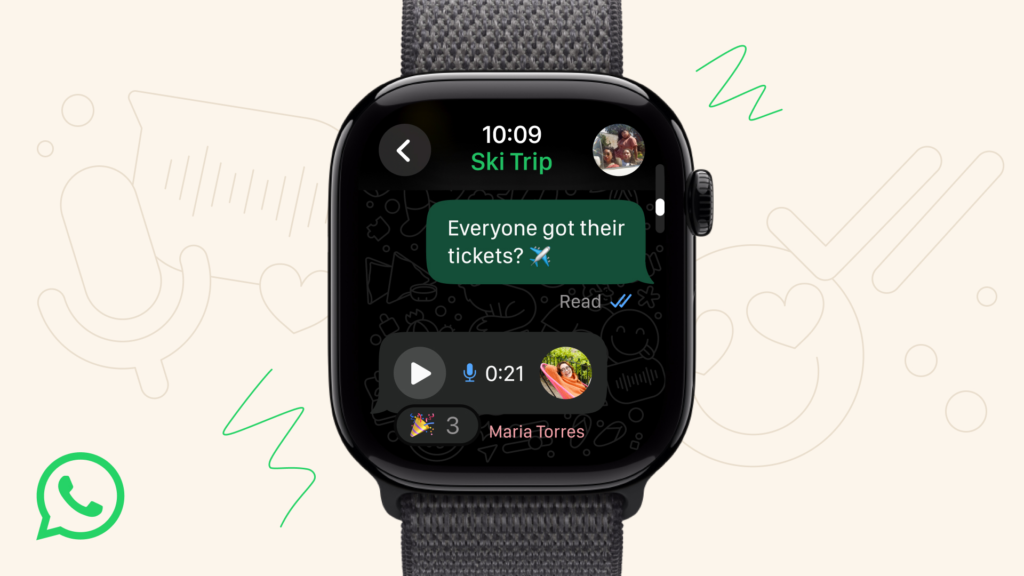
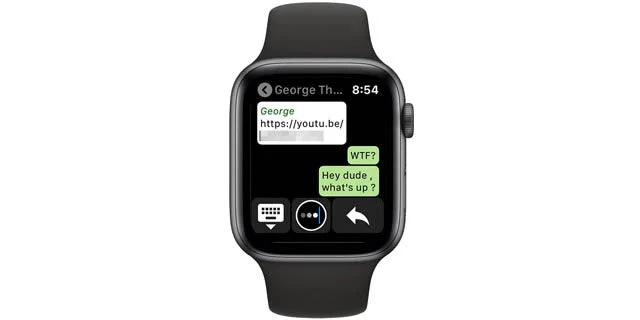
The single biggest upgrade is the ability to read full WhatsApp messages on Apple Watch. Gone are the days of messages being cut off with “…”. With the new app, you can open a conversation and scroll through the recent chat history, just as you would on your phone.
Our hands-on testing shows that the app syncs a significant portion of your most recent chats, allowing you to catch up on conversations without ever touching your iPhone. Scrolling with the Digital Crown is smooth and intuitive, and seeing an entire long message displayed clearly on the watch screen is a genuinely satisfying experience.
Send Voice Notes Directly From Your Wrist
For true hands-free WhatsApp messaging, the ability to send voice notes is a massive win. This was a highly requested feature and is a core part of the new app.
To send a voice note:
- Open a chat on your Apple Watch.
- Tap the microphone icon in the bottom-right corner.
- The recording interface will appear. Simply speak your message.
- Tap the ‘Stop’ button when you’re finished. You can then review and send it.
A close-up view of the watch screen shows a clear, red recording button, making the process unmistakable.
Pro Tip: For the best audio quality, especially in noisy environments, hold the watch a bit closer to your mouth while recording. This ensures your message is clear and easy to understand.
Reply with Text, Emojis, and Quick Replies
Replying to messages is now far more versatile. When you open a chat, you have multiple options to respond:
- Voice Dictation: Tap the microphone icon on the keyboard to use speech-to-text. Simply say your message, and the watch will transcribe it into text. This is different from a voice note, which sends an audio file.
- Keyboard & Scribble: You can use the full QWERTY keyboard (on supported models) or the Scribble feature to write out your reply.
- Emoji: Access the full emoji library to send a quick reaction.
- Quick Replies: A list of suggested, context-aware replies like “OK” or “On my way!” is still available for rapid responses.
Screenshots of the interface clearly show these distinct icons, allowing you to choose the best reply method for any situation.
View Media: See Images and Stickers
Another major improvement over the old “WhatsApp notifications only Apple Watch” system is the ability to view media. When someone sends you an image or a sticker, it will now appear directly within the chat on your watch. While videos are not supported for playback, seeing photos and stickers adds crucial context to conversations that was previously missing. The viewing experience is surprisingly clear for the small screen, though you’ll still want to use your phone for detailed viewing of high-resolution photos.
Is It Secure? Understanding End-to-End Encryption on Your Wrist
With this new level of convenience, a natural question arises: are my messages still secure? The answer is a definitive yes.
Security Confirmed: The official WhatsApp app for Apple Watch maintains the platform’s signature end-to-end encryption for all messages.
Meta has officially confirmed that all communication on the Apple Watch app is protected by the same security protocol as the phone app. According to the WhatsApp Help Center, “End-to-end encryption ensures only you and the person you’re communicating with can read or listen to what is sent, and nobody in between, not even WhatsApp”.[1] This means your messages are secured with a cryptographic lock, and only your device and the recipient’s device have the key. You can message from your wrist with the same confidence in your privacy as you do from your phone. For a deeper look at the technology, you can visit the official WhatsApp End-to-End Encryption page.

Common Problems & Fixes: Your WhatsApp Troubleshooting Guide
Even with the official app, you might run into a few hiccups. Here are solutions to the most common problems.
Fix: App Not Showing Up on Apple Watch
If you’ve updated WhatsApp on your iPhone but still don’t see the app on your watch, it likely just needs to be installed manually.
- Open the Watch app on your iPhone.
- In the ‘My Watch’ tab, scroll down to the ‘Available Apps’ section.
- Find WhatsApp and tap the ‘Install’ button next to it.
A screenshot of this screen on the iPhone clearly shows the list of available apps with the install button, guiding you directly to the solution.
Fix: Can’t Reply or Reply Button is Missing
This can be a frustrating issue, often related to a syncing or notification setting.
- Restart Both Devices: The simplest fix is often the most effective. Restart both your iPhone and your Apple Watch.
- Check Notification Settings: Even with the new app, ensuring notification settings are correct can help. On your iPhone, go to Settings > Notifications > WhatsApp and ensure ‘Allow Notifications’ is on. Then, in the Watch app, go to Notifications and make sure WhatsApp alerts are set to mirror your iPhone.
- Re-sync Your Watch: As a last resort, un-pairing and re-pairing your Apple Watch can resolve persistent syncing issues.
Fix: Voice Notes Not Working or Recording Fails
If you tap the microphone icon and nothing happens, or the recording fails, it’s likely a permission or connection issue.
- Check Microphone Permissions: On your iPhone, go to Settings > Privacy & Security > Microphone. Make sure the toggle for WhatsApp is turned on. This permission extends to the watch app.
- Ensure a Stable Connection: Voice notes require a solid Bluetooth connection to your iPhone (or a cellular/Wi-Fi connection on cellular models). Make sure your watch is properly connected.
Beyond Apple: How It Compares to WhatsApp on Wear OS (Samsung Galaxy Watch)
Apple Watch isn’t the only smartwatch with a native WhatsApp app. Google’s Wear OS, which powers devices like the Samsung Galaxy Watch and Pixel Watch, also has an official app. So, how do they compare?
According to reporting from The Verge, the Wear OS app launched in mid-2023 after its own beta period.[2] The feature sets are remarkably similar, but there is one key difference.
| Feature | WhatsApp on watchOS (Apple) | WhatsApp on Wear OS (Samsung) |
|---|---|---|
| Read/Reply to Chats | Yes | Yes |
| Send Voice Notes | Yes | Yes |
| View Media | Yes | Yes |
| Start New Chats | No | Yes |
| Take Calls on Watch | No (Notifications only) | Yes |
The ability to start new conversations and take calls directly on the watch gives the Wear OS version a slight edge in functionality. However, both platforms offer a massive upgrade over the old notification-based systems. For more details on the Wear OS version, you can read the announcement for the Official WhatsApp for Wear OS.
For Older Devices: The ‘Notification Mirroring’ Method Explained
If you have an older Apple Watch (Series 3 or earlier) or haven’t updated to watchOS 10, you can’t use the new native app. However, you can still get basic functionality through the original “notification mirroring” method.
This method does not install an app on your watch. It simply forwards the notifications that appear on your iPhone’s lock screen to your watch.
To enable it:
- On your iPhone, go to Settings > Notifications > WhatsApp.
- Make sure ‘Allow Notifications’ is toggled on.
- Next, open the Watch app on your iPhone.
- Tap on ‘Notifications’.
- Scroll down to the list under ‘Mirror iPhone Alerts From:’ and make sure the toggle next to WhatsApp is turned on.
With this setup, you will receive notifications and be able to use a limited set of quick replies, but you will not be able to read full messages, see images, or send voice notes. This method is officially documented in the WhatsApp Help Center for basic notification setup.[5]
Conclusion: Your Wrist-Based Messaging, Reimagined
The arrival of the official, full-featured WhatsApp app for Apple Watch is more than just a minor update; it fundamentally transforms the experience. What was once a passive system for glancing at truncated alerts is now an active, powerful tool for managing conversations on the go. You can now read entire messages, send detailed replies with your voice, and share quick audio notes—all without ever reaching for your phone.
With this guide, you now have all the information needed to install the app, master its features, and troubleshoot any issues like an expert. The days of WhatsApp frustration on your Apple Watch are over.
Share this guide with a friend who is still frustrated with their Apple Watch notifications, or leave a comment below with your favorite new feature!
References
- WhatsApp Help Center. (n.d.). About end-to-end encryption. Retrieved from https://faq.whatsapp.com/1149958969135751
- WhatsApp Blog. (n.d.). Get The Official WhatsApp For Your Apple Watch. Retrieved from https://blog.whatsapp.com/get-the-official-whatsapp-for-your-apple-watch
- WhatsApp Help Center. (n.d.). How to receive WhatsApp notifications on your Apple Watch. Retrieved from https://faq.whatsapp.com/864470801642897